Connect Claude Desktop to Tokatlas with CC Switch
Before You Start
Install Claude Desktop and a CC Switch release supporting its Desktop panel. This guide uses CC Switch’s third-party profile integration.
Prepare a Tokatlas API key and a model enabled for your account. Replace all YOUR_... placeholders. Back up existing settings before merging changes.
Connection Settings
| Setting | Value |
|---|---|
| Provider name | Tokatlas |
| Protocol | Messages |
| Endpoint / Base URL | https://api.tokatlas.ai |
| API Key | YOUR_TOKATLAS_API_KEY |
| Model ID | YOUR_TOKATLAS_MODEL_ID |
Setup
- In CC Switch choose Claude Desktop, then add a custom provider named Tokatlas. This is a separate entry from Claude Code.
- Choose the Anthropic Messages format and enter the Tokatlas endpoint and key. For direct mode, confirm that the Desktop model IDs and authentication are accepted by the gateway.
- If the actual model ID needs mapping, enable model mapping and assign a Desktop role to the exact enabled Tokatlas model ID. Keep CC Switch local routing running.
- Enable the provider, fully quit Claude Desktop, reopen it, and test a new conversation.
Add the provider in CC Switch
The image below shows CC Switch’s Add New Provider page, not Claude Desktop’s own settings interface.
Open CC Switch, select its Claude Desktop tab, then click + at the upper right to open this page. Choose Custom Configuration and enter Tokatlas under Provider Name. Continue with the endpoint, key and model settings described above. Ignore the other provider presets.
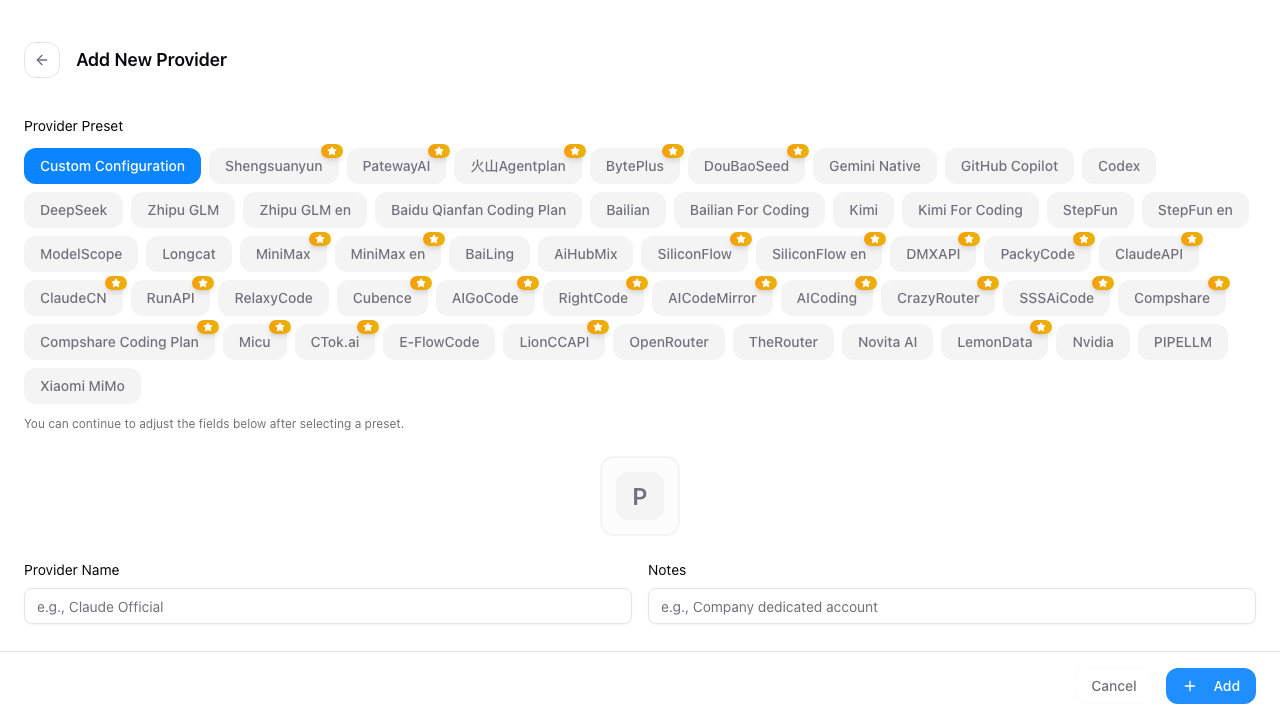
Screenshot source: CC Switch official documentation (unmodified; the interface may vary by version).
Compatibility Notes
Compatibility depends on the installed Desktop and CC Switch versions. This route has not been live-tested against Tokatlas. To restore the original sign-in, enable Claude Desktop Official in CC Switch and restart Desktop.
Verify and Troubleshoot
- Open a new conversation and send “Reply with OK only”; check that text returns.
- Check Tokatlas usage for a successful request at the same time with the configured model.
- If you need tools, ask the client to list files in a test directory and check that the tool result returns to the conversation.
- If step 1 fails, test the key and model directly using API Basics. If that succeeds, troubleshoot client settings below.
| Problem | Check |
|---|---|
401 / 403 | Re-enter the Tokatlas key without quotes or spaces; check the auth mode and model access. |
404 | Compare the full request URL with the table above; remove a duplicated /v1 or endpoint suffix. |
| Unknown model | Copy an enabled ID from the model list, save it, and select that model in a new chat. |
| Tool failure | Model capabilities and client protocol support. |
| Changes ignored | Select the Tokatlas provider/profile, fully quit the client, and reopen it. |